Layouts, presets and monitors
Updated: 2026-11-14
A desk remembers how you arranged it. Presets let you switch between arrangements in one click, and you can spread any desk across several monitors. This article covers Terminal Turbo and the other desks — Money, Scanner, Algo trading and My bots. For what a desk is, see Desks of windows.
Your current layout is saved automatically
Every desk saves its open windows, their positions and sizes as you work. Turbo also saves each window’s venue, wallet, link group and filters. The layout is stored on the server, so it comes back on another computer. Computer and phone keep separate layouts.
If you have the same desk open in two tabs or on two devices, the one that saved last wins. The older tab then shows: “The layout was changed in another tab or on another device — showing the latest version.” Anything you did in that older tab after the other one saved isn’t kept. Keep one tab per desk per device to avoid this.
Built-in presets
Presets in the desk header opens the preset menu. Built-in presets are ready-made layouts for common jobs. Applying one doesn’t delete your windows: in Turbo, the windows that aren’t part of the preset are minimized.
| Desk | Built-in presets |
|---|---|
| Terminal Turbo | Polymarket, Up/Down, Crypto, Options, Arbitrage, Stocks, Order flow |
| Money | Summary, Arbitrage, Polymarket, Exposure, Reconciliation |
| Scanner | Classic, Overview, Arbitrage, Polymarket, Order flow, Stocks, Options |
| Algo trading | Overview, Polymarket, Crypto, Stocks & derivatives, Lab, Backtester |
| My bots | Overview, Polymarket, Crypto, Stocks & derivatives, Results |
The Turbo presets, window by window:
| Preset | Windows |
|---|---|
| Polymarket | Event catalog, Polymarket chart, Polymarket positions, Polymarket book, Polymarket ticket — all in one link group |
| Up/Down | The same windows, with the catalog open on Up/Down series |
| Crypto | Crypto filter, Chart, Order book and Futures on Bybit; Portfolio on all exchanges |
| Options | Options, Position Builder and Chart on Bybit; Portfolio on all exchanges |
| Arbitrage | Crypto filter, Pair, My pairs, Portfolio on all exchanges |
| Stocks | Stock search, Chart and Stock ticket on Alpaca; Portfolio, Orders and Balance on Alpaca |
| Order flow | Order flow, Exchanges book, Time & sales and a Crypto ticket, linked |
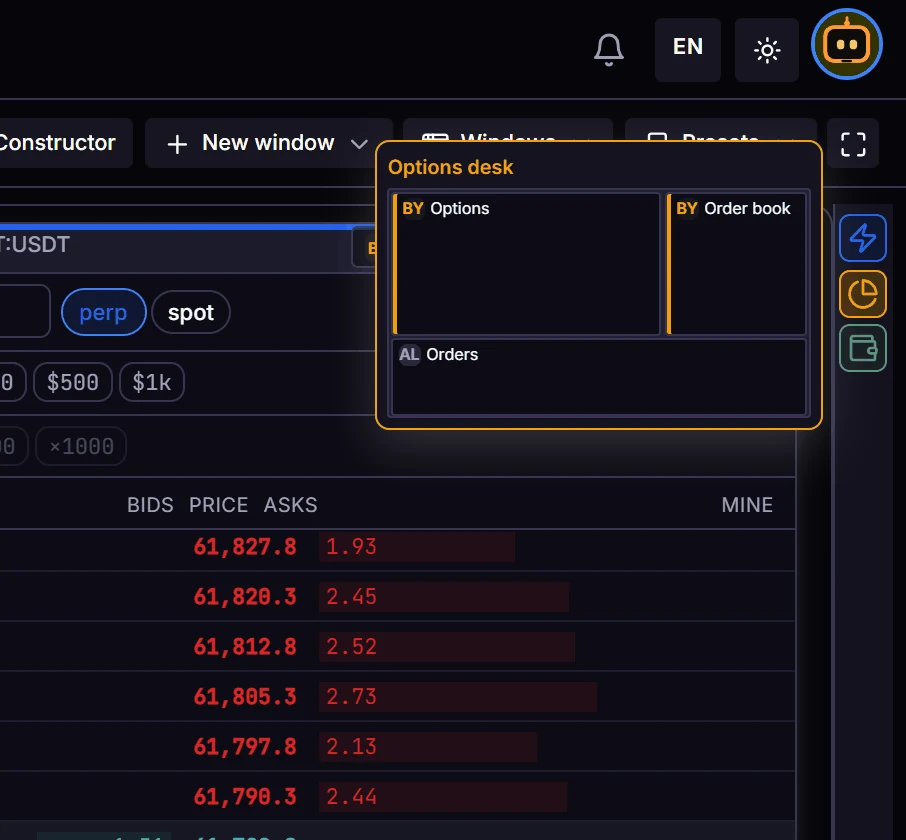 A preset preview: a small map of the preset’s windows and their venues.
Your own presets
In Terminal Turbo
- Presets → Save preset… saves all windows with their positions, sizes, link groups, filters and your screen size. You can set an icon and a color.
- Save active window as preset… saves a single window: its type, venue, wallet, settings, colors and size.
- Edit on a preset offers Save settings only or Save with windows.
- Manage presets… renames or deletes presets.
- Minimized windows aren’t saved into a preset.
- You can keep up to 100 presets. If you see “Preset limit reached”, delete the ones you don’t need.
- If you open a preset that was saved on a different screen size, Turbo asks: Fit (scale the windows to this screen) or As saved.
Opening several presets over time can leave many minimized windows behind. Windows → Window manager… lists every window grouped by layout and helps you close duplicates and windows minimized for a long time. You can also turn on Close untouched windows when opening a layout.
On the other desks
- Presets → Save as my preset… saves the windows and their sizes (on Money, also the selected market).
- Reset to preset puts the desk back to the preset you’re on; Delete my preset removes your own preset.
- Each desk keeps up to 12 of your presets. If the layout is too big to save, close a few windows.
Presets live on the server and are available on all your devices.
Templates
Windows → Templates arranges the open windows into a ready grid: Main on top, Two on top, three below, Main on the left, 2×2 grid, Three columns, Main on the right. Windows fill the slots in order of importance, starting with the last active one. On Money, Scanner, Algo trading and My bots, new windows then go into the template’s free slots until you tile or cascade.
Several monitors
You can spread a desk across as many monitors as you have.
Move one window. Right-click a window header → Move to another monitor. If you already use other monitors, a submenu lets you pick Monitor N or New browser window. The window opens in its own browser window; drag that to the other monitor.
Move the whole desk. On Money, Scanner, Algo trading and My bots, Windows → Whole desk to another monitor sends all the desk’s windows to a new browser window.
How it works:
- Link groups work across monitors. A coin you pick on monitor 1 reaches the chart on monitor 2.
- The main window saves everything, including windows on other monitors. Keep it open. If you close it, the other browser windows say “The main Turbo window is closed — changes here are not saved” and offer Open main window.
- The main window shows a strip, Windows on other monitors, listing each monitor, its windows and whether its browser window is open, with Show, Open and Return here.
- After a reload or a new sign-in, the extra browser windows are closed — a browser can’t open windows without a click. Press Open in that strip. If nothing opens, allow pop-ups for the site.
- In an extra window, Back to main window returns its windows and closes it.
- You can use up to 8 extra browser windows.
Place on monitors (Chrome and Edge). The button in the strip asks the browser for its window management permission. With it, each extra window opens right on its monitor, where it stood last time. Without it — or in Safari and Firefox — the window opens on the current monitor; move it once and it’s remembered. If you declined, change the permission in your browser’s site settings.
Presets remember monitors. A preset saved in the main window remembers which windows were on which monitor. Opening it puts them back and opens their browser windows; if the browser opens only the first one, press Open for the rest. With fewer monitors than when you saved, the extra monitors’ windows open in the main window.
The wheel menu (right-click)
Right-click opens a round menu. You can pick an item with the mouse, or turn the mouse wheel to move around the ring.
| Where you right-click | What you get |
|---|---|
| A window header on Money, Scanner, Algo trading or My bots | Minimize, Maximize, Snap to…, Add window, Window color…, Open as a page, Move to another monitor, Close |
| A window in Terminal Turbo | Snap to a half or a corner, Align all…, Same size as this…, Window color…, Open linked, Move to another monitor |
| A desk header | The desk’s window groups and Layouts (presets) |
Keyboard and search
- Cmd+K (Ctrl+K on Windows) or Search in the app header opens search across the whole platform: pages, your bots by name, and actions such as Emergency stop or New backtest. Use ↑/↓ to choose, Enter to open, Esc to close.
- Double-click a window title to maximize it or restore it.
- Press Esc while dragging a window to cancel the move.
On a phone
On a phone each desk switches to a phone mode:
- One window fills the screen. The Windows button at the bottom switches between windows and adds new ones.
- Split puts a second window Above or Below the current one; drag the divider to change heights.
- The window menu ⋮ holds the window type and link group, and Hide window takes a window off the screen without closing it.
- Your phone layout is separate from your computer layout.
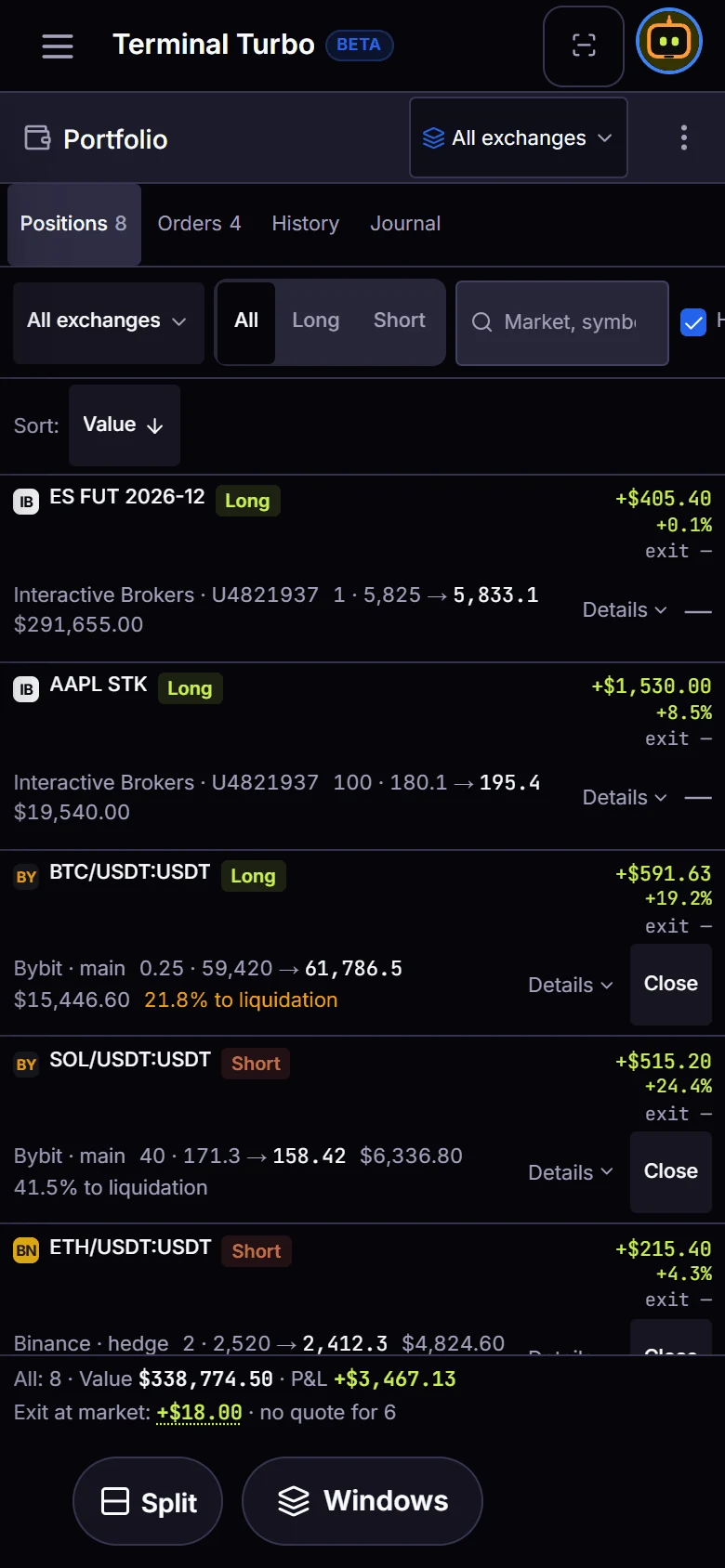 Phone mode: one window at a time, with Split and Windows at the bottom. Numbers are demo data.
More about the phone: Mobile.
When layouts aren’t saved
- Without an active plan (demo mode), presets and the layout aren’t saved to the server: “Presets are not saved in DEMO mode — activate a plan to unlock.”
- During a support session, presets and the layout are view only.
- In the mobile app, your layout is loaded from the server but changes made in the app aren’t saved back.