Stocks and ETFs in Turbo
Updated: 2026-11-14
Terminal Turbo trades US stocks and ETFs through your broker account. You search for a ticker, watch the chart and place market, limit, stop or stop-limit orders from the Stock ticket — next to your crypto and Polymarket windows, in the same portfolio. To trade stocks with a strategy instead, see DCA and grid bots and the Strategy library.
Before you start
- Connect your Alpaca account. Every stock window without an account shows “No Alpaca account” and a Connect Alpaca button that opens the connection dialog. See Brokers.
- Start with a paper key if you’re new: a practice account with no real money. Switch to a live key when you’re ready.
- Broker accounts are available on a paid plan.
Where to find it
Open Terminal Turbo and apply Presets → Stocks. Open Terminal Turbo →
The preset opens Stock search, Chart and Stock ticket on Alpaca in one link group, plus Portfolio, Orders and Balance on Alpaca. In New window, the stock windows are under Alpaca, in the Stocks group.
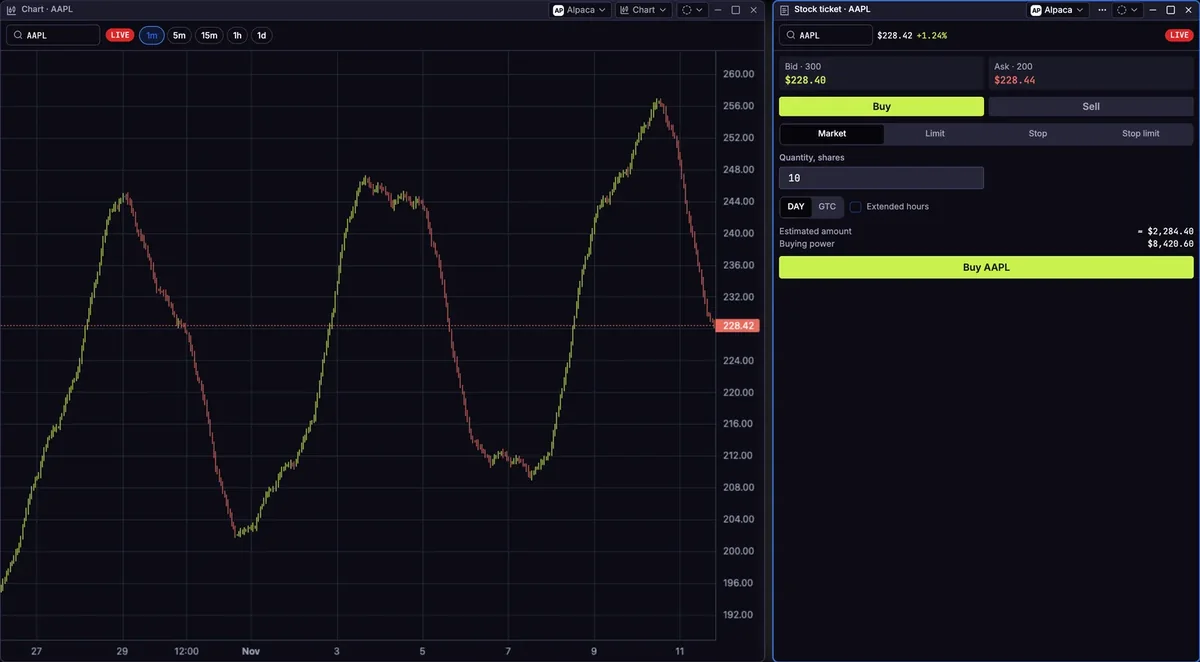 An AAPL chart and the Stock ticket, linked. The ticket shows bid, ask, estimated amount and buying power. Demo data.
Finding a stock
In Stock search, type a ticker (AAPL) or a company name (Apple). A fractional tag means you can buy fractional shares — with a market order and DAY only. Pick a result and the linked chart and ticket switch to it.
You can also look for ideas first in the Scanner’s US stocks windows — Market now, Stock screener, Stock card — and press Trade in Turbo →. See Stock scanner.
The Stock ticket
The ticket shows the account type: paper (“practice trading, no real money”) or live (“real money”).
- Buy or Sell.
- Order type: Market, Limit, Stop or Stop limit.
- Quantity, shares.
- Limit price and/or Stop price for those order types. Prices take up to 2 decimals from $1, up to 4 below $1.
- Time in force: DAY or GTC.
- Extended hours — pre-market, after-hours and overnight. Limit orders only.
- Check Estimated amount against Buying power. Above buying power, the broker may reject the order.
- Review the order under Check the order and send it with Buy {symbol} or Sell {symbol}. Edit takes you back to the form.
After sending you’ll see “Order {symbol} accepted: {status}”. If you see “No response from the server. The order may have been placed — check the Orders window”, check Orders before you try again.
A market order fills at the market price; the amount shown before is an estimate.
Orders, portfolio and balance
The Orders, Portfolio and Balance windows work on Alpaca like on any exchange: open orders with cancel, positions with P&L, cash, equity and buying power. Stock positions also appear in the all-accounts Positions window and in Money.
Broker messages
| Message | What to do |
|---|---|
| Not enough buying power or shares | Reduce the size. |
| The broker rejected the order parameters / Check the order fields | Fix the fields and try again. |
| Alpaca rejected the keys — reconnect the account | Reconnect your account. |
| Alpaca isn’t responding / Too many requests | Try again later. |
| The order can no longer be canceled | It already filled or expired. |
Risks
- Stock prices can gap when the market opens, so stop orders may fill well past the stop price.
- Extended-hours sessions are thinner, with wider spreads.
- On a live account, every order uses real money. Practice on paper first.