Crypto spot and futures in Turbo
Updated: 2026-11-14
Terminal Turbo trades crypto spot and perpetual futures on your own exchange accounts, through the API keys you connect. You see several exchanges in one screen, pick the venue per window, and place orders from a full order form, a quick ticket or straight from the order book. To run the same idea automatically, see DCA and grid bots and Arbitrage bots.
Before you start
- Connect an exchange under Money → Exchanges & keys. Create the API key with trading rights only, never withdrawal. See Exchange keys.
- Which exchanges trade spot, futures or both: see Venues.
- Placing orders needs an active plan.
Where to find it
Open Terminal Turbo and apply Presets → Crypto. Open Terminal Turbo →
The preset opens a Crypto filter, Chart, Order book and Futures on Bybit, all in one link group, plus a Portfolio across all exchanges. Change any window’s exchange with the Window exchange chip in its header. A venue without your key shows “no key”, and Connect an exchange… opens the key dialog.
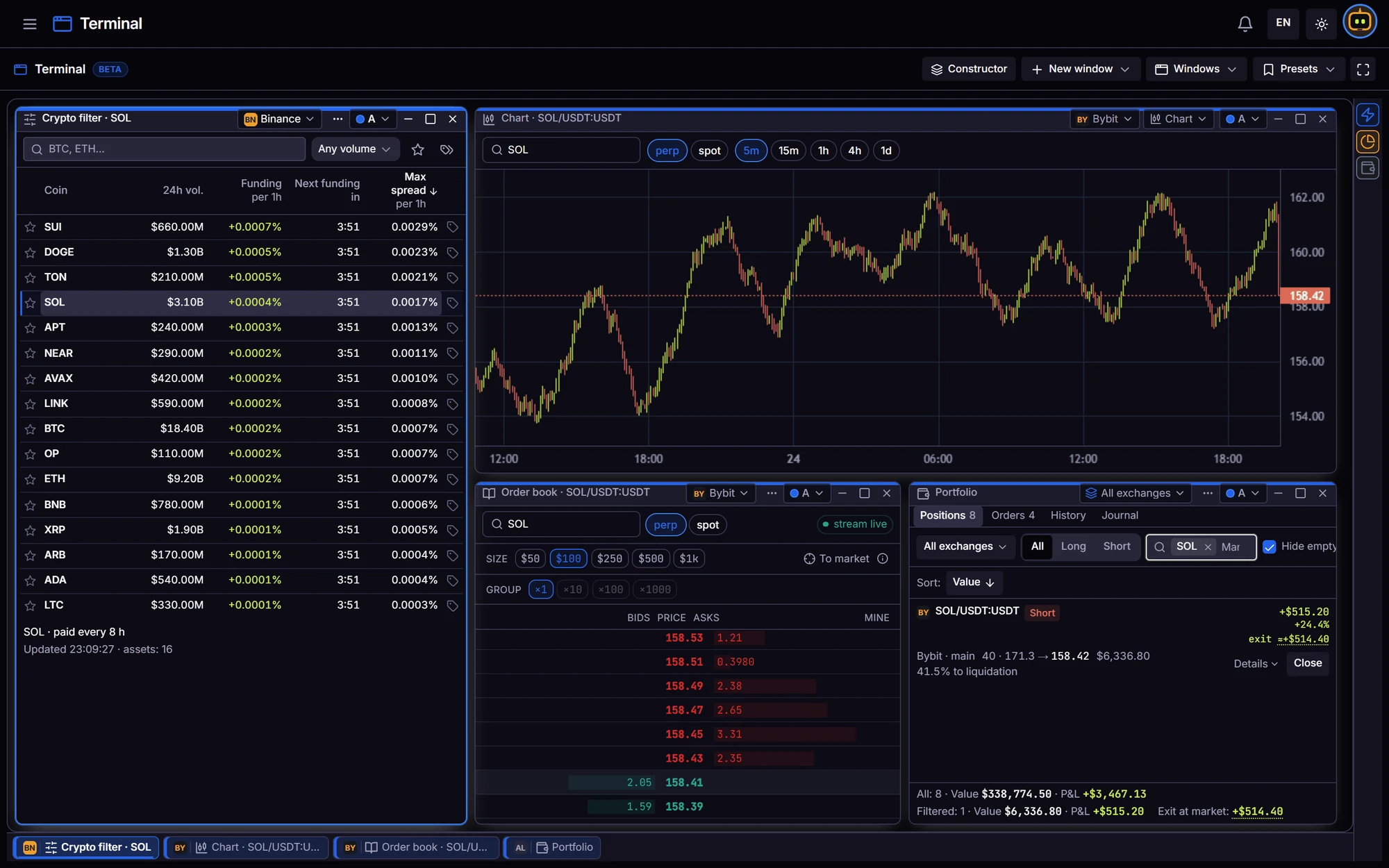 Pick SOL in the Crypto filter and the linked chart, order book and portfolio switch to it. Numbers are demo data.
The windows
| Window | What it’s for |
|---|---|
| Crypto filter | Coins traded on at least two exchanges, ranked by spread: 24h volume, funding per hour, time to the next funding, max spread. Favorites and tags. A pick goes to the link group. |
| Chart | Candles for spot or perp: 5m, 15m, 1h, 4h, 1d. |
| Order book | The live book. Tap a price to place a limit order. Your own orders show in the Mine column with Edit and Cancel. |
| Spot / Futures | The full order form of the window’s exchange, with its own chart and book. |
| Crypto ticket | A quick form: an amount in dollars, at market or limit. |
| Orders | Open orders on one exchange or all of them. |
| Balance | Balances by account and the sum of the accounts you select. |
The Crypto filter only lists coins traded on at least two exchanges; search finds the rest. The order book has quick size buttons ($50 to $1k), price grouping (×1 to ×1000) and To market to scroll back to the current price.
The Spot and Futures forms
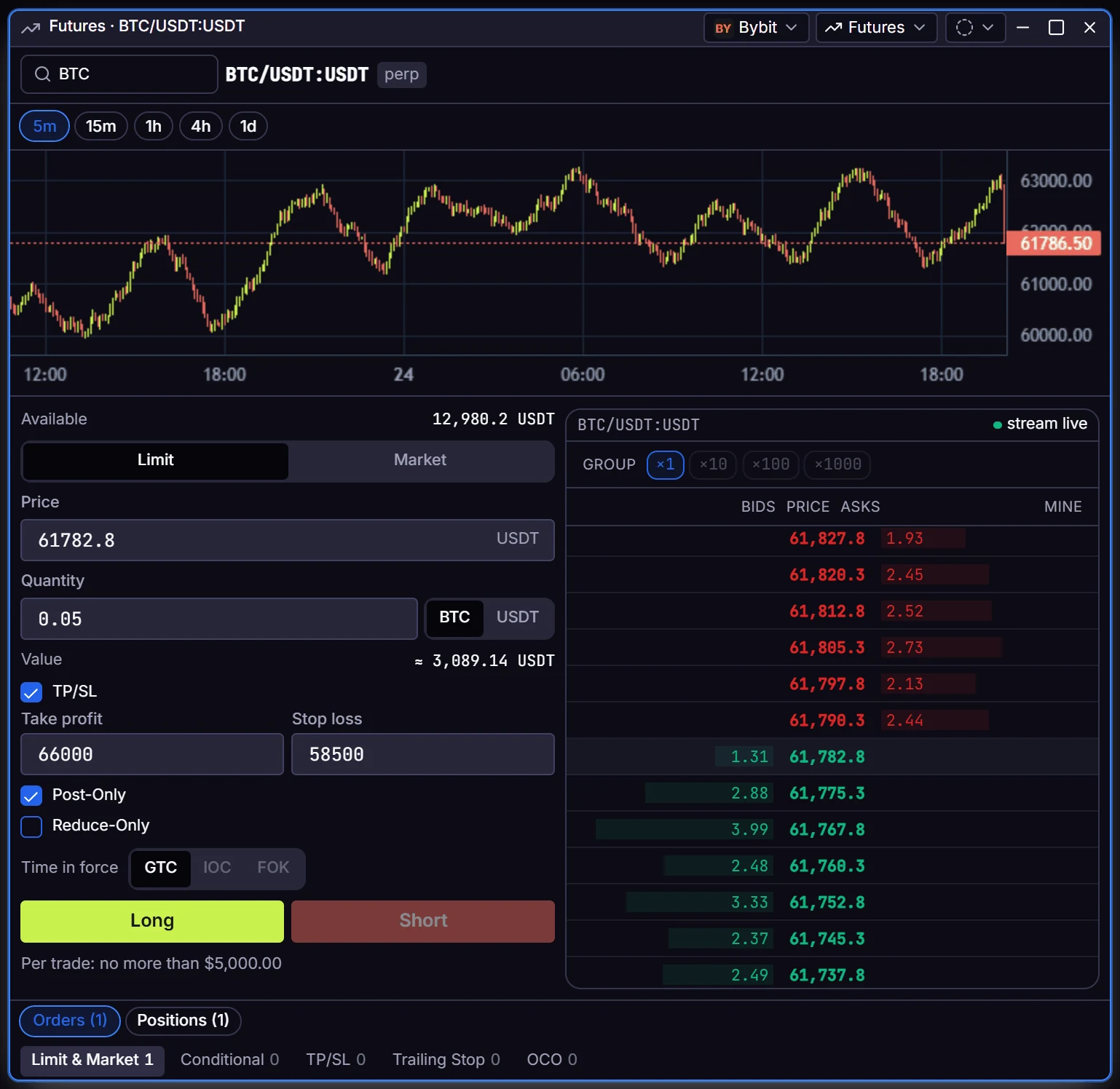 The Futures form: limit or market, quantity in coin or USDT, TP/SL, Post-Only and Time in force. Demo data.
- Limit or Market. For a limit order, set the Price.
- Quantity in the coin, or the order value in the quote currency. “Share of available” and Max fill it from your free balance.
- Long / Short on futures, Buy / Sell on spot.
- Optional TP/SL (Take profit, Stop loss), Post-Only, Reduce-Only and Time in force (GTC, IOC, FOK).
- A setting the exchange doesn’t support is marked “not on {venue}”; “support unknown” means it couldn’t be confirmed.
- Orders (n) and Positions (n) below the form show this pair only. A position line shows its leverage.
- Your per-trade limit is shown under the buttons, for example “Per trade: no more than $5,000.00”.
The form has no leverage control. Leverage is a setting of your account on the exchange.
Checks before sending: quantity above zero; a limit price when there’s no book price yet; enough balance; for a long, take profit above the price and stop loss below it (the reverse for a short). Pairs not quoted in dollars aren’t supported here.
After you press the button
| Message | What it means |
|---|---|
| Order placed | The exchange accepted it. |
| Pending in Orders | Accepted by the exchange, waiting for the account snapshot to confirm. |
| Order not placed | Rejected, with the reason. |
| No response — the order may have been placed. Check the Orders window before retrying. | Don’t press again blindly. Look in Orders first. |
| The amount is below the exchange’s minimum order (lot or step). The order was not sent. | Increase the size. |
| More than what is left of your daily turnover | Your own daily limit. |
| Placing orders requires an active subscription. | No active plan. |
The Orders window
Tabs: Limit & Market, Conditional, TP/SL, Trailing Stop, OCO. Filter by exchange, side and coin; sort by any column.
- Cancel asks “Cancel this order?” and can’t be undone.
- Edit changes the price and quantity of the whole order. The side can’t change, and the new quantity must be above what’s already filled. An Edited badge means the exchange accepted the change.
- A bot badge marks an order placed by one of your bots. Cancelling it interferes with that bot.
What Turbo doesn’t do on exchanges
- Move money between exchanges, deposit or withdraw.
- Change leverage or margin mode.
- 1-minute candles: exchange charts start at 5 minutes.
Risks
- Futures are leveraged. A move against you can liquidate your position; the Portfolio window shows the distance to liquidation.
- Market orders fill against the book and can fill worse than the price on screen, especially on smaller coins.
- Every trade pays the exchange fee; perpetual positions also pay or receive funding.
- If an exchange or the connection fails mid-order, the order’s state may be unknown — check Orders before retrying.