Terminal Turbo
Updated: 2026-11-14
Terminal Turbo is where you trade by hand. Every order in Turbo is one you place yourself — no bot is involved. It covers every market on the platform: Polymarket prediction markets, crypto spot and perpetual futures, crypto options, US stocks and ETFs, and manual arbitrage between two exchanges. You work in movable windows — charts, order books, tickets, portfolio — that you arrange, link and save as layouts.
If you’d rather automate the same idea, the path runs through the Backtester to My bots. Both paths use the same accounts and show up in the same Money section.
Where to find it
Open Terminal Turbo in the main menu. Open Terminal Turbo →
There’s also a terminal-only site, terminal-app.gogobots.ai, where Turbo is the start page next to your Polymarket wallets, exchange keys and profile. Links to bots from there open the full app in a new tab.
Many other screens send you here: Trade in Turbo → in the Scanner, Trade in terminal on a smart money market, a notification about an option position. Each opens Turbo with the right preset and the instrument already loaded.
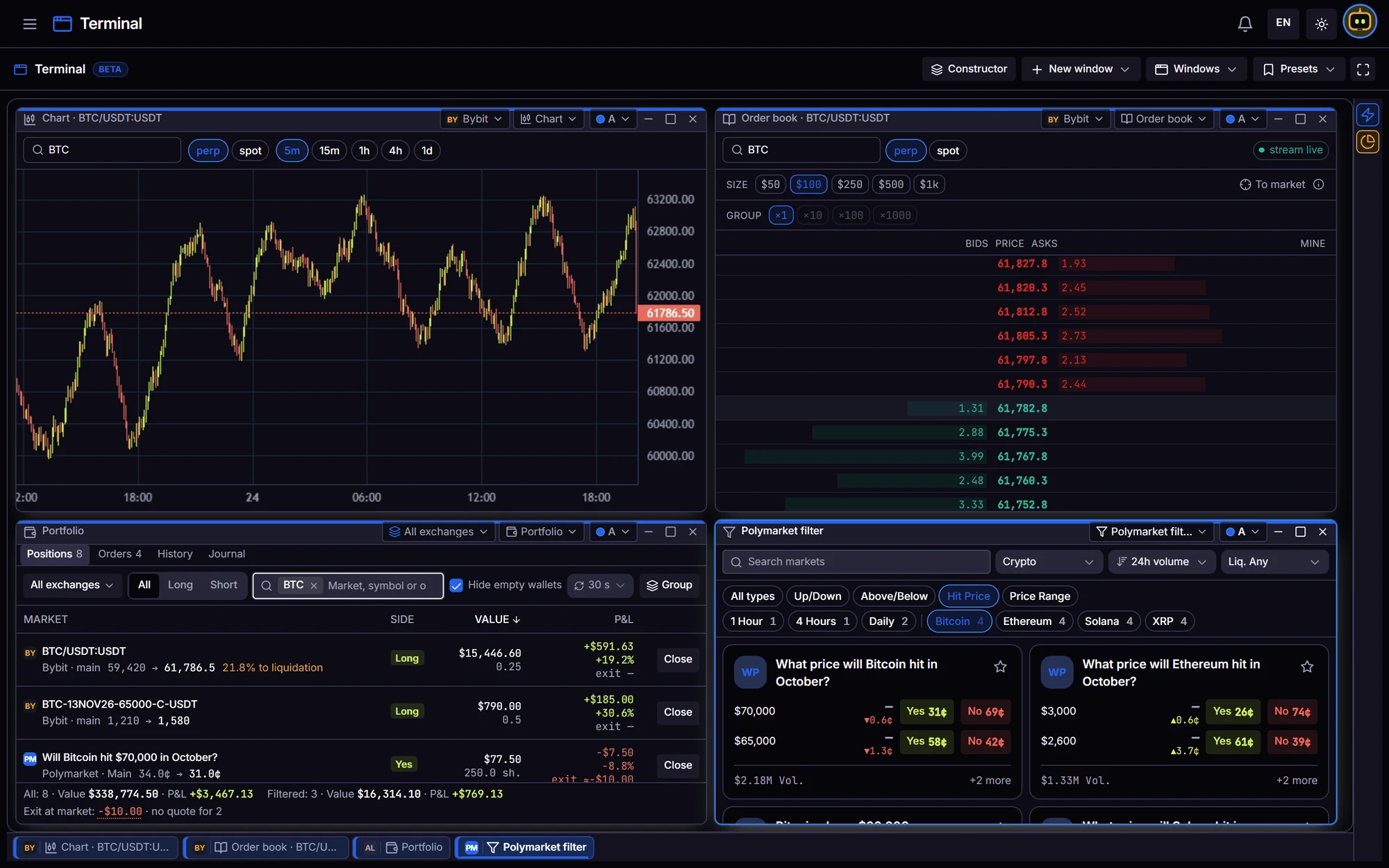 One screen, several markets: a BTC perpetual chart and order book, a Polymarket filter and one portfolio for everything. Numbers are demo data.
What you can trade
| Market | Main windows | Account it uses | Details |
|---|---|---|---|
| Polymarket events and Up/Down series | Event catalog, Polymarket chart, book, ticket and positions | Your Polymarket wallet | Polymarket in Turbo |
| Polymarket perpetuals | Polymarket perps | Your Polymarket wallet | Polymarket in Turbo |
| Crypto spot and perpetual futures | Crypto filter, Chart, Order book, Spot, Futures, Crypto ticket | Your exchange API key | Crypto exchanges in Turbo |
| Crypto options and combinations | Options, Position Builder | Your exchange API key | Options in Turbo, Position builder |
| US stocks and ETFs | Stock search, Stock ticket, Chart | Your Alpaca account | Stocks in Turbo |
| Manual arbitrage | Pair, My pairs | Your exchange API keys | Pair arbitrage |
| Everything at once | Portfolio, Positions, Orders, Balance | All connected accounts | Portfolio and positions |
Before you trade, connect what you need: a funded Polymarket wallet (Funding and safety), exchange API keys with trading rights and no withdrawal rights (Exchange keys), or a broker account (Brokers).
The menu bar
| Button | What it does |
|---|---|
| Constructor | Opens the Position Builder full screen — the existing window or a new one. |
| New window | Portfolio, Balance and Positions for all accounts at the top, then each venue with the windows it supports, grouped by market: Prediction market, Crypto market, Order flow, Arbitrage, Stocks, Common. |
| Windows | Tile all, Cascade, Templates, Minimize all, Restore all, Close all…, Reset layout, Window manager… |
| Presets | Built-in layouts (Polymarket, Up/Down, Crypto, Options, Arbitrage, Stocks, Order flow) and your own. |
| Full screen | Hides everything except the terminal. |
Windows snap to each other and to the edges (the magnet), show guides while you drag, and sit 2 px apart so no screen space is wasted. Right-click a window for the wheel menu. Full details: Layouts, presets and monitors. The full list of windows: Window catalog.
A window’s header
Each window header has a few chips:
| Chip | What it sets |
|---|---|
| Window exchange | Which venue this window works with: Polymarket first, then exchanges, then your broker. A venue without your key shows “no key”; Connect an exchange… opens the key dialog. Portfolio, Orders and Balance also offer All exchanges. |
| Polymarket wallet | Which of your Polymarket wallets the window uses (only on windows that need one). |
| Link | The window’s link group: No link, Group a, Group b… |
| Window type | “Show in this window” — turn this window into another type without opening a new one. |
Because the venue is set per window, you can have a Bybit chart, a Binance order book and a Polymarket ticket side by side.
Link groups
Windows in the same link group share the instrument. Pick a coin in the Crypto filter or a market in the Event catalog, and the chart, order book and ticket in the same group switch to it. Built-in presets put their windows in one group for you.
A window that isn’t in a group doesn’t follow other windows. The Event catalog warns you: “This window is not in a link group — chart, order book and ticket do not follow the choice.”
One exception on purpose: the Pair window doesn’t swap its legs when the group’s coin changes, because changing a leg in the middle of a trade is dangerous. It offers a button to pick a pair for the new coin instead.
Right-click a window → Open linked opens a new window already in its group.
Event catalog and Pair
Two windows bring whole former terminals into Turbo:
- Event catalog is the full Polymarket browser: feeds, sections, sports, Up/Down series, search, favorites, rules and alerts. Old links to the Polymarket terminal open Turbo with the Polymarket or Up/Down preset and the same market.
- Pair is the manual arbitrage terminal: two legs on two exchanges, one size, one button. Old links to the manual arbitrage terminal open Turbo with the Arbitrage preset and the same pair.
Safety
- You place every order. Each ticket has a review or confirmation step before anything is sent. Gogo AI can explain windows and errors, but it can’t place, change, cancel or close orders in Turbo.
- Exchange keys trade, they don’t withdraw. Create API keys without withdrawal rights.
- Your own limits apply. Per-trade, per-minute and daily limits you set are checked before an order goes out.
- “No response” means check first. If a ticket says the order may have been placed, look in the Orders window before you try again.
- Bots and manual trades can share an account. Closing a Polymarket position in Turbo sells all shares of that outcome in the wallet, including shares a bot bought. See Portfolio and positions.
Trading carries real risk: prices move against you, market orders can fill worse than the screen shows, and every trade pays fees and spread.
Without an active plan
Without an active plan, Turbo is view only for new orders: “Placing orders requires an active subscription.” You can still close positions at market and cancel Polymarket orders. Presets and layouts aren’t saved.
There’s also a public demo at terminal-app.gogobots.ai/demo: the real interface on recorded data, no sign-in needed. Prices there aren’t real and nothing is saved.
What Turbo doesn’t do
- Create, start or stop bots — that’s My bots. Turbo can show a running Up/Down bot in the Live bot window and hand a manual pair over to a bot.
- Move money between accounts, deposit or withdraw, or change leverage. Leverage is a setting of your exchange account.