Trading Polymarket in Turbo
Updated: 2026-11-14
Terminal Turbo has a full set of windows for trading Polymarket by hand: a market catalog, a chart, an order book with a price ladder, an order ticket and your positions. Orders go through your own Polymarket wallet on the platform. If you’d rather have a strategy trade for you, see Up/Down bots or Copy bots. New to prediction markets? Start with Polymarket basics.
Before you start
- You need a live Polymarket wallet with funds. Create and fund it under Money → Wallets. See Funding and safety.
- Placing orders needs an active plan. Without one, the windows are view only.
Where to find it
Open Terminal Turbo, then Presets → Polymarket for event markets or Presets → Up/Down for short Up/Down series. Open Terminal Turbo →
Both presets open five windows in one link group: Event catalog, Polymarket chart, Polymarket positions, Polymarket book and Polymarket ticket. Pick a market in the catalog and the other four switch to it.
You can also arrive from elsewhere: Trade in terminal on a smart money market, or a market or series you starred in Turbo, opens the right preset with that market loaded.
The windows
| Window | What it does |
|---|---|
| Event catalog | Browse all of Polymarket: feeds (Trending, New, Ending soon, All), sections such as Politics, Sports and Crypto, Up/Down series, search, favorites, market rules and alerts |
| Polymarket filter | A compact picker: search, topic, sort by volume, liquidity, market type and coin |
| Polymarket chart | The outcome’s price with your orders on it; drag stop-loss and take-profit lines |
| Polymarket book | The order book, as a table or a price ladder; pick which outcome to show |
| Polymarket ticket | Order entry: market, limit or spread |
| Polymarket positions | Your positions and open orders, with a tab switch |
| Polymarket perps | Polymarket perpetuals: instruments, your perp account and a ticket with margin and liquidation |
| Live bot | Watch a running Up/Down bot next to your manual windows |
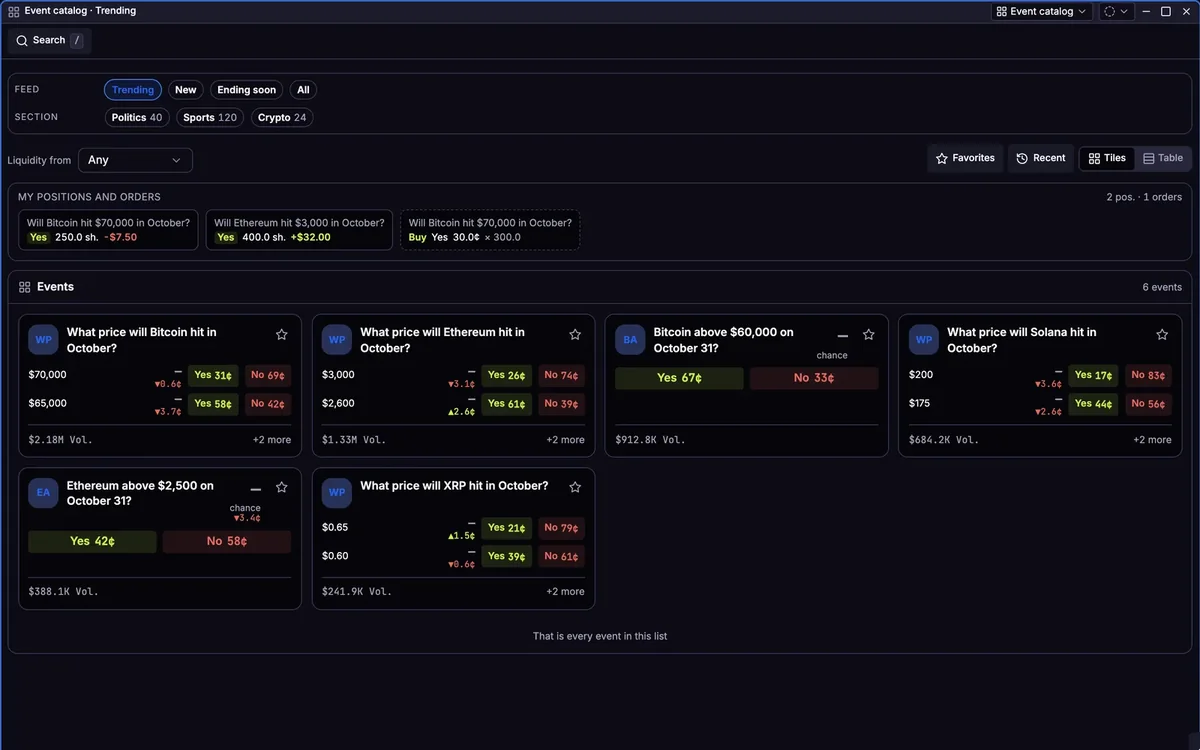 The Event catalog with your positions and orders at the top. Prices and amounts are demo data.
Finding a market
The Event catalog shows events as tiles or a table. Each tile shows the question, Yes and No prices per market, recent change and volume. My positions and orders at the top shows what you already hold. Use Liquidity from to hide thin markets — wide spreads cost money.
The Polymarket filter is a smaller picker for when screen space is tight.
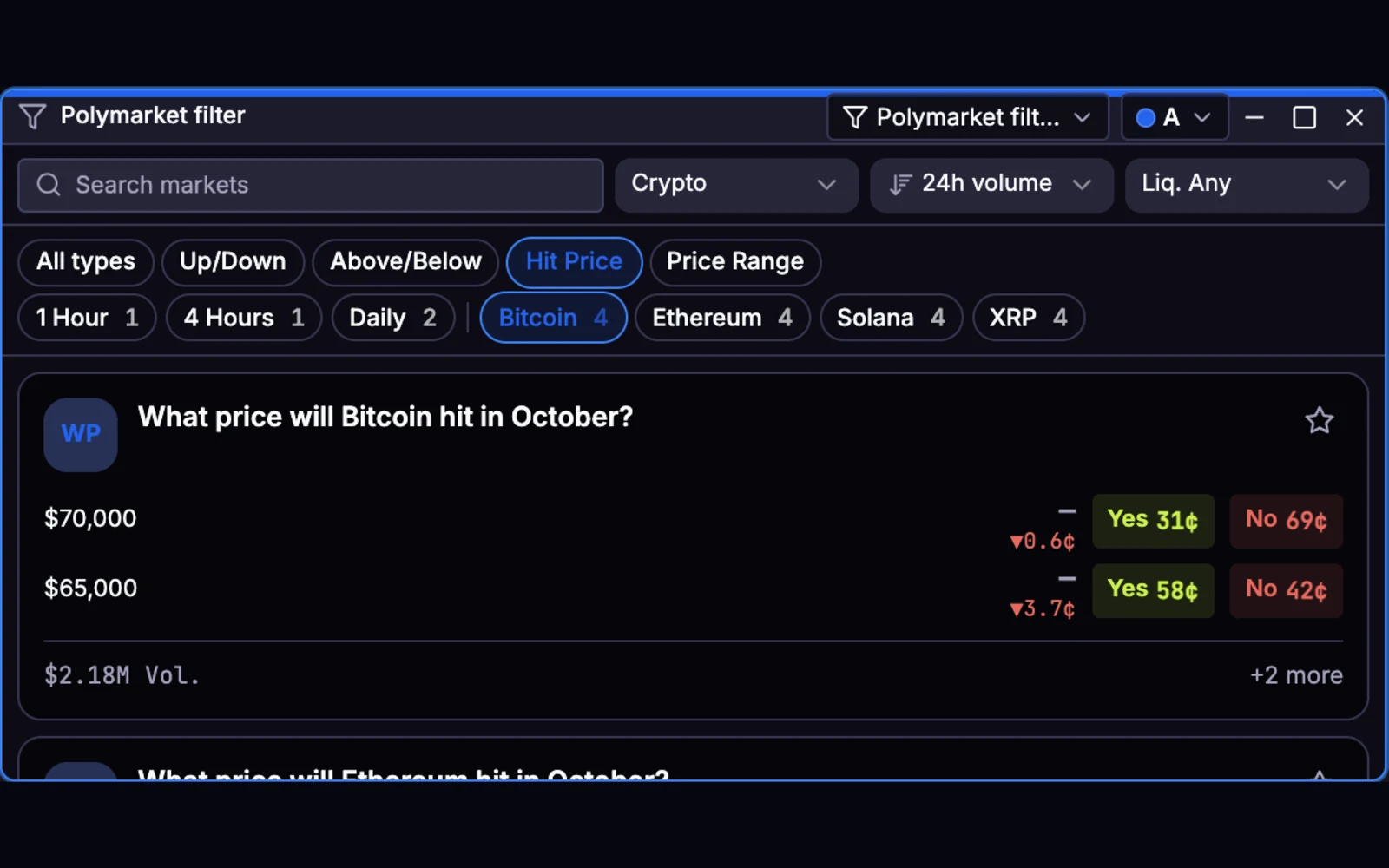 Polymarket filter: market type and coin chips narrow the list. Demo data.
For an Up/Down series, the linked windows follow the live window of the series and switch to the next one when the current window ends.
Placing an order
The Polymarket ticket:
- Wallet — the ticket uses the Polymarket wallet chosen for the window. “No live wallets available” means you need to create and fund one first.
- Outcome — pick the outcome you want to trade.
- Mode:
- Market — fills against the book now. The ticket shows Est. fill price.
- Limit — you set the Limit price. It rests in the book until filled or cancelled.
- Spread — two orders on a Yes/No market at once, one on each outcome, each at its own price. Prices sum under $1 means that if both fill, the guaranteed $1 payout is above your total cost. $1 or more locks in a loss.
- Size (shares) — the number of shares. Est. cost is an estimate.
- Preview order → check the summary under Confirm your order → Place order.
Only you can press Place order.
Trading from the ladder
Switch the Polymarket book to the ladder view: “Click a price to place a limit order · click your order to cancel · drag it to move.” Moving is cancel-and-replace: if the new order can’t be placed, you’ll see “Could not move the order — it was cancelled but not re-placed”.
Alerts
The catalog’s Alerts notify you in the panel when a market’s price, spread or 24-hour volume reaches your level.
Common messages
| Message | What it means |
|---|---|
| The trading engine is warming up — try again in a minute | Your wallet’s trading engine is starting after a pause |
| Not enough free funds on this wallet — bots are using part of the balance | Your bots hold part of the wallet’s money |
| This limit order is below the market’s minimum size — sell at market instead | The market has a minimum order size |
| The price is off the market’s tick grid | Use the market’s price step |
| This order is over your per-order limit (and other limits) | Your own trading limits: per order, open orders, per minute, per day |
| The trading engine did not respond — the order was not confirmed | Check open orders before you retry |
| Trading is not available from the current region | Polymarket blocks trading from your region |
Selling and closing
- To sell, use the ticket with the outcome you hold, or Close in the Portfolio window.
- Closing a position sells all shares of that outcome in the wallet, including shares a bot bought. The bot isn’t told about the sale. If bots and manual trades share a wallet, check before you close.
- A resolved market can’t be sold, only redeemed. Winning shares pay $1 each.
- Without an active plan you can still close at market and cancel orders.
See Portfolio and positions for exit P&L and closing.
Polymarket perps and the Live bot window
Both are in New window → Prediction market, after the market windows.
- Polymarket perps needs a Polymarket wallet selected inside the window. The ticket shows margin and the liquidation price. Perpetuals are leveraged, so a move against you can liquidate the position. The window doesn’t share its instrument with a link group.
- Live bot shows one of your running live Up/Down bots: “Strategy conditions”, “Current signals” and “Bot positions”. The bot’s market goes to the window’s link group, so the group’s chart draws the bot’s orders and stop-loss/take-profit lines. Close trade on a bot position asks “Sell at market? The bot stops managing this trade.” You can still place manual orders on the same market — they share the wallet with the bot’s orders.
Starting, stopping and creating bots happens in My bots, not in Turbo.
Risks
- You can lose everything you paid for a share.
- Market orders on thin books fill worse than the screen suggests. Check depth before a large order.
- Each trade pays the taker fee and the spread. See Polymarket basics.
- The mobile app has no Polymarket windows; use the web app on your phone instead.