Portfolio and positions in Turbo
Updated: 2026-11-14
Terminal Turbo has four windows for what you hold: Portfolio, Positions, Orders and Balance. Together they show every position on every connected account — exchanges, Polymarket wallets and brokers — and let you close them, group them and review the result. Positions opened by your bots show up here too, marked as such. For the full picture of your money across the platform, see Money and Exposure.
Where to find it
In Terminal Turbo, New window puts Portfolio, Balance and Positions for all accounts at the very top. Most built-in presets also include a Portfolio on all exchanges. Open Terminal Turbo →
The Portfolio window
The Portfolio window shows positions of one exchange, one Polymarket wallet or All exchanges (set with the venue chip). Tabs: Positions, Orders, History and Journal.
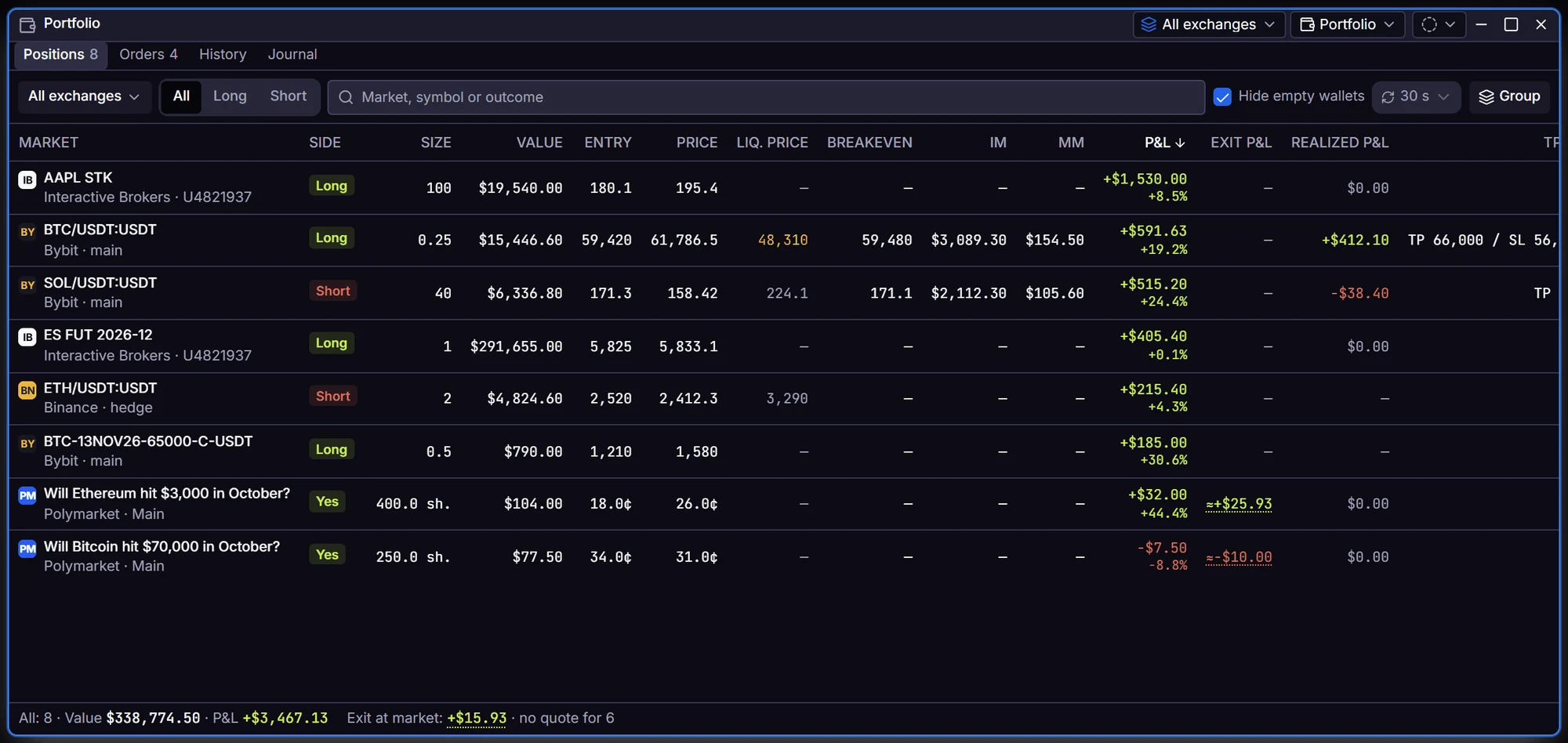 One table for every market. The footer shows totals and “Exit at market”. Numbers are demo data.
On the Positions tab you can filter by account, All / Long / Short and a search for “Market, symbol or outcome”, hide empty wallets, set the refresh interval, and sort by any column. Columns include size, value, entry and current price, liquidation price, breakeven, initial and maintenance margin (IM, MM), P&L, Exit P&L, Realized P&L and TP/SL. The footer shows the count, total value, total P&L and Exit at market for the whole list and for the filtered rows.
P&L and exit P&L
Each row shows two different results.
| Figure | What it means |
|---|---|
| P&L | The paper result at the mark price in the table (for Polymarket, the current outcome price). It ignores the spread, book depth and the fee you’d pay to close. |
| Exit P&L | “P&L if you close these positions at market now”: the order book is walked for your full size — bids for a long, asks for a short — minus the taker fee of the closing trade. |
The exit figure opens a breakdown, How the exit P&L is calculated: P&L at mark → spread from mark to the best book price → book depth → taker fee → exit at market now. The fees used:
- Exchange: your account’s fee rate × size × price. If the rate is unknown, the breakdown says it’s “not deducted”.
- Bybit option: min(0.03% × index; 7% × price) × size.
- Polymarket: size × fee rate × p × (1 − p). Markets without a fee show no fee.
Notes you may see: “The book is thinner than the position: the rest is priced at the worst visible level”; “The entry fee is already paid — it is in realized P&L, not here”. The exchange may also show its own P&L by its own mark price.
Both figures are estimates of now, not forecasts. A real market close fills at the book of that moment. “No quote for n” means some positions had no book to price an exit.
Closing a position
Close on a row opens Close position: Market or Limit, and the size (the whole position by default).
- Polymarket: “Sells all of this outcome’s shares in the wallet, including shares bought by bots.” The bot isn’t told about the sale.
- Exchange position partly held by bots: a market close sells only your part. A limit order would close the bots’ share too, so it’s blocked.
- A leg of a manual arbitrage pair: closing it affects that leg only, leaving the other unhedged. Close the pair in the Pair window instead.
- Resolved Polymarket market: you can only redeem it, not sell.
- Without an active plan, closing at market always works; a limit close needs a plan.
Groups and “Close all”
Groups tie several positions into one trade you track together — say, a perp hedge and two options, or several Polymarket outcomes of one event.
- Group → Select the positions.
- Create group and name it.
A group card shows:
- Total — unrealized P&L of the open legs plus realized P&L of closed ones, as the exchange reports it, net of fees.
- Funding, for reference (Bybit already includes it in realized P&L).
- A P&L curve from snapshots every 5 minutes. It appears 5–10 minutes after you create the group.
- Payoff at expiry, the legs, a journal, tags and a note.
- To builder opens the group in the Position builder. A combination you open from the builder becomes a group automatically.
Close all ({n}) on a group → Close all at market sends market orders for every position at the same time, in parallel; each fills at its own venue’s speed. If one leg fails, the others are not rolled back. Retry failed (n) resends only the failed ones. Already closed and resolved positions are skipped. Check the exit P&L first: closing everything at market on thin books can cost more than you expect.
Groups need an active plan.
History and Journal
- History — closed positions for a period (24h, N days). Some exchanges report trades rather than closed positions; for those, exit price and P&L aren’t shown.
- Journal — closed groups: net realized P&L, win rate, profit factor, average win and loss, average hold time and realized P&L by day. A group closes when all of its positions are closed.
For every closed trade on every venue, see the Journal in Money.
The Positions window
Positions is one table of every open position on every account — exchanges, Polymarket and brokers. It has no venue chip; it always shows everything.
- Filters: origin All / Manual / Bots / External (with counts), Venue and Class (Perp, Spot, Option, Polymarket, Stock).
- Totals: number of positions, value, unrealized P&L and option greeks by coin.
- Open on a row opens that position in the matching Turbo window.
- Close selected: tick rows, then confirm “Close {n} position(s) at market?” — market orders on each venue, can’t be undone. The result shows per row.
Two safeguards: bot positions can’t be ticked — the bot closes them (stop it on its card), otherwise its pair breaks. And if a selected position is a leg of a manual pair, you’re warned that closing one leg leaves the other unhedged.
To stop all bots at once, use the Emergency stop.
Orders and Balance
- Orders lists open orders of one exchange or all of them, with Cancel and Edit. See Crypto exchanges in Turbo.
- Balance shows each connected account: “In wallet”, “In positions” and the total. Filter by exchange, account or market, and Hide empty accounts. Calculate lets you tick accounts and see the Sum of selected accounts.